
Your phone shows full Wi-Fi bars, but nothing loads, and the hotel Wi-Fi login page is not showing. It is one of the most common travel annoyances, and it has a clear technical cause. The login page is not a regular website. It is a captive portal, and the hotel network has to redirect your device to it. When that redirect fails, the page never opens.
This guide explains how captive portals work, why the login page fails to appear, and how to fix it in a few minutes. It also lists what hotel IT teams should check when several guests report the same problem.
Quick answer
To fix a hotel Wi-Fi login page that is not showing, open a browser and go to http://neverssl.com. Use http, not https, so the hotel network can redirect the request to its login page. If nothing happens, turn off any VPN, Private DNS, and mobile data, forget the Wi-Fi network, and reconnect. If the page fails on every device, the cause is in the hotel network.
Key takeaways
- A hotel login page is a captive portal, and the network must redirect the device to it.
- The redirect works on plain HTTP requests, so HTTPS sites, VPNs, and private DNS often block it.
- An HTTP-only address such as http://neverssl.com triggers the redirect on most devices.
- If the page fails on every guest device, hotel IT should check the redirect rules, DNS, and walled garden.
Why is the hotel Wi-Fi login page not showing?
The login page does not show when the device cannot detect the captive portal, or when the network cannot redirect the device to it. Most cases start on the guest device. Some start in the hotel network. The table lists the usual causes and the fix for each.
How does a captive portal work?
A captive portal is a web page that a network shows to a new device before it grants internet access. The guest signs in or accepts the terms of use on that page. Hotels, airports, and cafes use captive portals to identify guests and apply access rules.
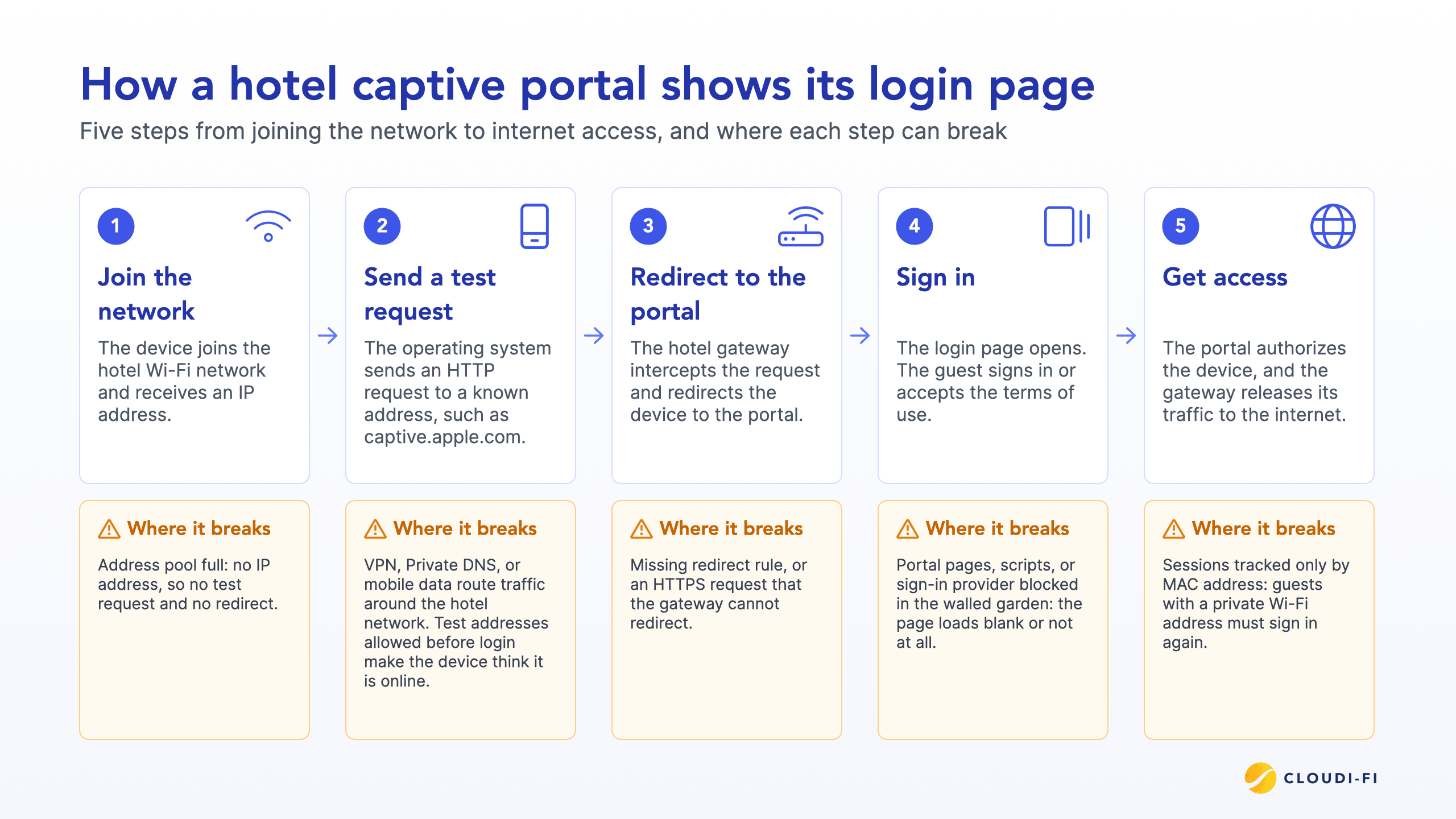
The login page is only the visible part. Behind it, the network holds the device in a restricted state until the portal authorizes it. The sequence has five steps.
1. The device joins the hotel Wi-Fi network and receives an IP address.
2. The device sends a test request over HTTP to a known web address.
3. The hotel gateway intercepts that request and redirects the device to the portal.
4. The login page opens, and the guest signs in or accepts the terms of use.
5. The portal authorizes the device, and the gateway releases its traffic to the internet.
Hotels can offer several ways to sign in on the same portal, such as email, SMS code, social login, or approval by a host or reception. The method changes what the guest sees at step four. It does not change the sequence.
How devices detect a captive portal
After a device joins a Wi-Fi network, the operating system sends a quiet test request over HTTP. Apple devices request captive.apple.com, Android devices request connectivitycheck.gstatic.com, and Windows devices request www.msftconnecttest.com. An open network returns the expected reply. A captive portal network intercepts the request instead, and the device opens the login page by itself.
Recent devices can also learn the portal address from the network. [RFC 8910] defines a DHCP and Router Advertisement option that gives the device the address of the captive portal API, and [RFC 8908] defines that API, which tells the device where the login page is. This works only when both the hotel network and the device support it.
Why HTTPS breaks the redirect
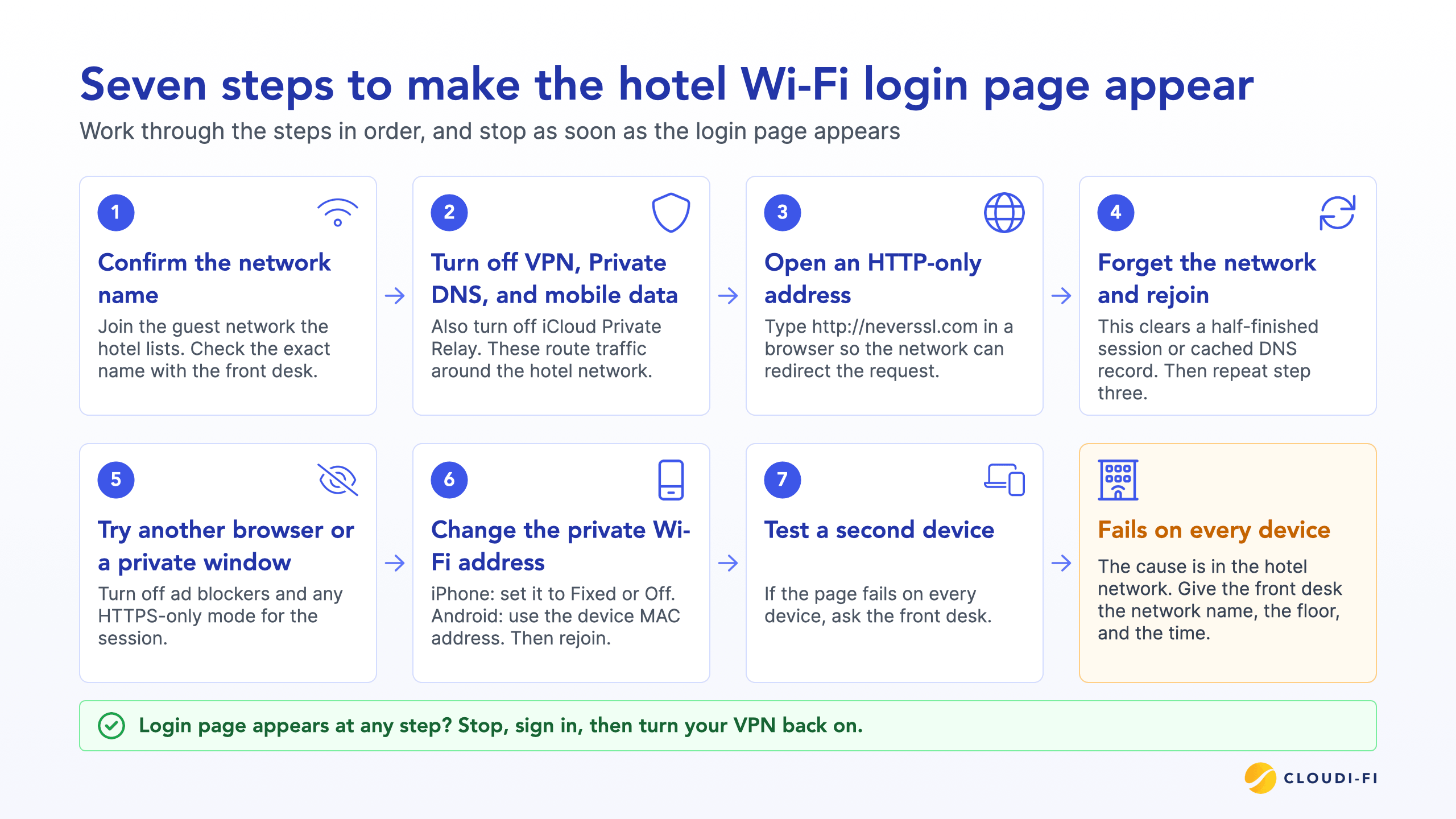
Most websites and browsers use HTTPS by default. A captive portal cannot cleanly redirect an encrypted request, because it would have to impersonate the site. The browser then shows a certificate warning or a timeout instead of the login page. That is why the automatic sign-in window sometimes fails, and why an HTTP-only address works.
How to make the hotel Wi-Fi login page appear
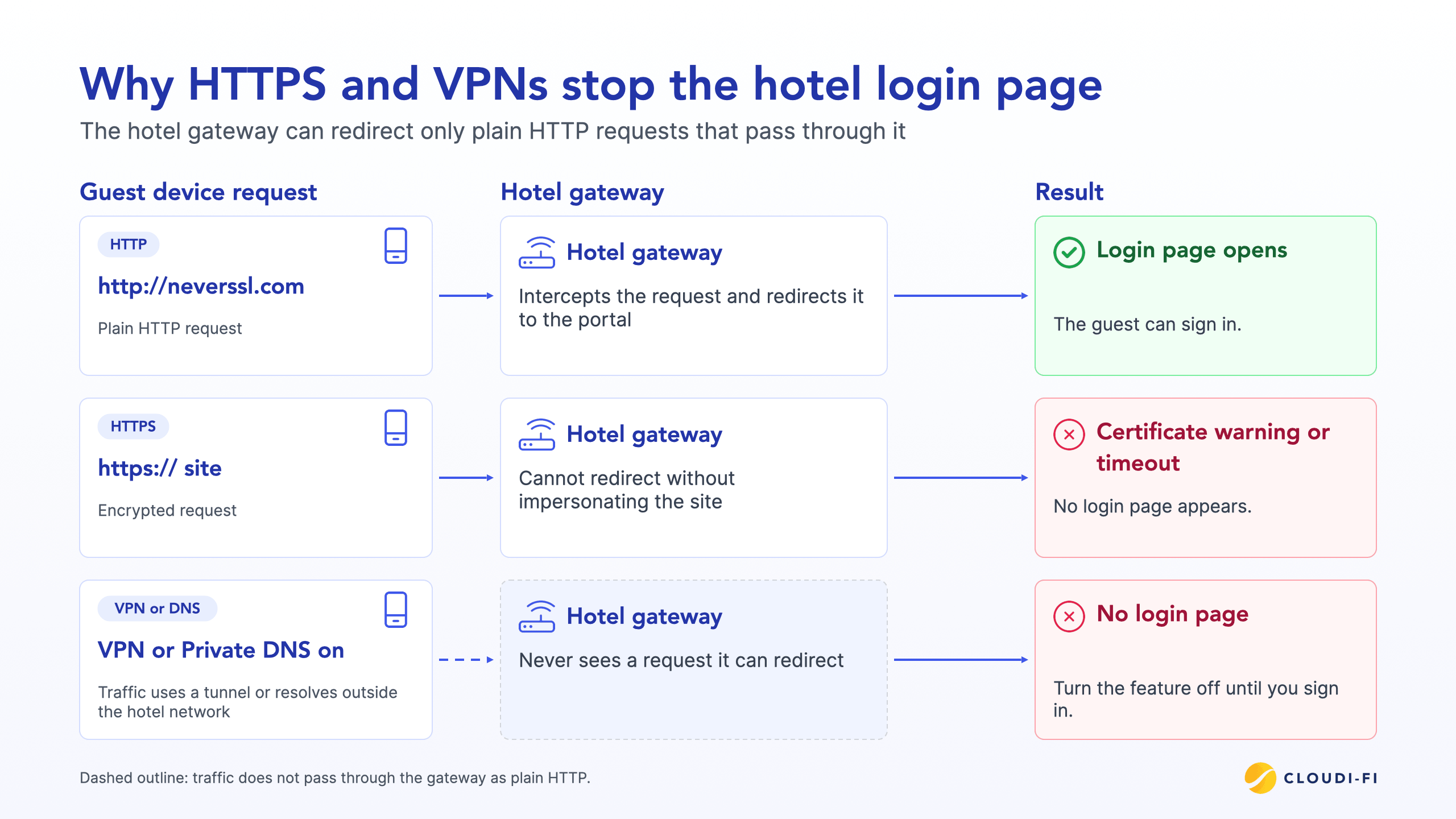
Work through these seven steps in order, and stop when the page appears.
1. Confirm the network name. Join the guest network that the hotel lists, and check the exact name with the front desk. A similar name can belong to an unofficial hotspot.
2. Turn off the VPN, Private DNS, iCloud Private Relay, and mobile data. These features route traffic around the hotel network, so the redirect never reaches the device.
3. Open an HTTP-only address in a browser. Type http://neverssl.com, with http at the start, and press Enter. The hotel network then redirects the request to the login page.
4. Forget the network and rejoin it. This clears a half-finished session or a cached DNS record. Then repeat step three.
5. Try another browser or a private window. Turn off ad blockers and any HTTPS-only mode for the session.
6. Change the private Wi-Fi address setting. On iPhone, set Private Wi-Fi Address to Fixed or Off for this network. On Android, choose the device MAC address for this network. Then rejoin.
7. Test a second device, then ask the front desk. If the page fails on every device, the hotel network needs a check.
iPhone and iPad
Open Settings, then Wi-Fi, and tap the hotel network name again. The sign-in window often reopens. If it does not, open Safari and go to http://captive.apple.com, which is Apple's own test address, or to http://neverssl.com.
Android
Pull down the notification shade and tap the "Sign in to network" notification. If there is none, open Chrome and go to http://neverssl.com. Check that Private DNS is off, and that the phone is not set to switch to mobile data automatically.
Windows
Windows usually shows an "Action needed" message next to the network. If it does not, open Microsoft Edge and go to http://neverssl.com. Turn off any VPN client first, because it can block the redirect.
Mac
macOS normally opens a small sign-in window by itself. If it does not, open Safari and go to http://captive.apple.com. If the window closes before you finish, reopen it from the same address.
Staying safe on hotel Wi-Fi
A genuine login page asks for details such as a room number, name, email address, or a code. It never asks you to install software or an update. If a page does, disconnect and tell the front desk. After you sign in, turn your VPN back on.
What if the login page does not show on any device?
When phones, tablets, and laptops all fail, the cause is almost always in the network, not in the devices. Tell the front desk that the login page does not open on any device, and give the network name, the floor, and the time. This gives the hotel IT team the clue it needs.
Why hotel login pages fail, and what IT teams should check
Hotels combine many access points, many guest devices, and short stays. That stresses a captive portal in ways an office network rarely does. IT teams can start with these seven checks.
A cloud captive portal removes part of this work. The portal, authentication, and logs run in the cloud, and the hotel network only redirects the device to them. Nothing is installed on site.
How Cloudi-Fi helps hotels deliver a reliable login experience
The Cloudi-Fi Cloud Captive Portal works with the Wi-Fi infrastructure a hotel already runs, including Cisco, HPE Aruba Networking, Fortinet, and Juniper Mist. It needs no hardware on site, and one console manages the portal, sign-in methods, and terms of use for every property.
Hotel groups can brand the login page per property, offer email, SMS, social, or sponsor sign-in, and connect the portal to a property management system through an API. Connection logs follow local rules in each country, which helps chains that operate across borders. For the full picture, read the captive portal guide and the hospitality page.
Get Cloudi-Fi for your hotels →
Frequently asked questions
Why does hotel Wi-Fi say connected but load no page?
The device is on the Wi-Fi network, but it has no internet access until the captive portal authorizes it. The network holds all traffic until the guest signs in. Open an address that starts with http:// to trigger the login page.
What address do I type to get the hotel Wi-Fi login page?
Type an address that starts with http://, for example http://neverssl.com or http://captive.apple.com. Some guides suggest router addresses such as 192.168.1.1. The gateway address differs from hotel to hotel, so the HTTP method is more reliable.
Why does hotel Wi-Fi keep asking me to log in again?
Sessions have time limits, and many portals recognize a device by its Wi-Fi address. Phones now use a private address that can change, so the portal treats the device as new. Setting the private address to Fixed, or to the device address, for that network usually stops the repeated sign-ins.
Can a VPN stop the hotel Wi-Fi login page from showing?
Yes. A VPN sends all traffic through its own tunnel, so the hotel network cannot redirect the request. Turn the VPN off, sign in to the portal, and turn it back on.
Is it safe to use a hotel Wi-Fi login page?
It is safe when the network is the one the hotel lists and the page asks only for sign-in details. Never install software or an update from a login page. Turn on a VPN after you sign in.