Modern enterprise networks are becoming increasingly complex. Alongside traditional corporate laptops and servers, organizations now manage a growing number of IoT devices, BYOD endpoints, guest devices, and unmanaged assets. Many of these devices cannot support traditional security agents or authenticate through standard identity systems.
This creates a growing visibility challenge: security teams need accurate information about what devices are connecting to the network before they can apply effective security controls.
DHCP device profiling provides a practical way to address this challenge. By analyzing information exchanged during the DHCP process, organizations can gain passive, agentless visibility into connected devices and use that intelligence to support stronger network access control (NAC) and Zero Trust security strategies.
What is DHCP profiling?
DHCP profiling is the process of identifying and categorizing devices by analyzing the information they provide during the Dynamic Host Configuration Protocol (DHCP) exchange.
Whenever a device connects to a network, it communicates with a DHCP server to request an IP address and receive network configuration details. While this process is primarily designed to enable connectivity, it also contains valuable information about the device itself.
Every device follows a specific communication pattern when requesting network access. These patterns often include vendor-specific behaviors, requested configuration parameters, and technical characteristics that can help identify the device type, manufacturer, or operating system.
DHCP fingerprinting captures these unique characteristics and creates a device profile based on the information found in the DHCP exchange.
This can help security teams determine:
- Device manufacturer or vendor
- Device category
- Operating system characteristics
- Hardware type
- Whether a device matches a known profile or appears unknown
For example, a corporate workstation, smart camera, wireless printer, and industrial sensor may all request an IP address, but the way they communicate with the DHCP server can reveal differences between them.
Unlike approaches that depend on installed software or manual inventory, DHCP device identification uses an existing network process to create visibility across connected assets.
How does DHCP profiling work? (DHCP fingerprinting explained)
DHCP profiling works by using the DHCP handshake as a passive source of device information.
When a device joins a network, it typically follows this process:
- The device broadcasts a DHCP discovery request to locate an available DHCP server.
- The DHCP server responds with an available IP address and configuration settings.
- The device accepts the network configuration and begins communication.
- The device periodically renews its DHCP lease to maintain connectivity.
During these exchanges, the device shares multiple technical details, including its MAC address, requested parameters, and DHCP options.
DHCP option 55 as a key identification signal
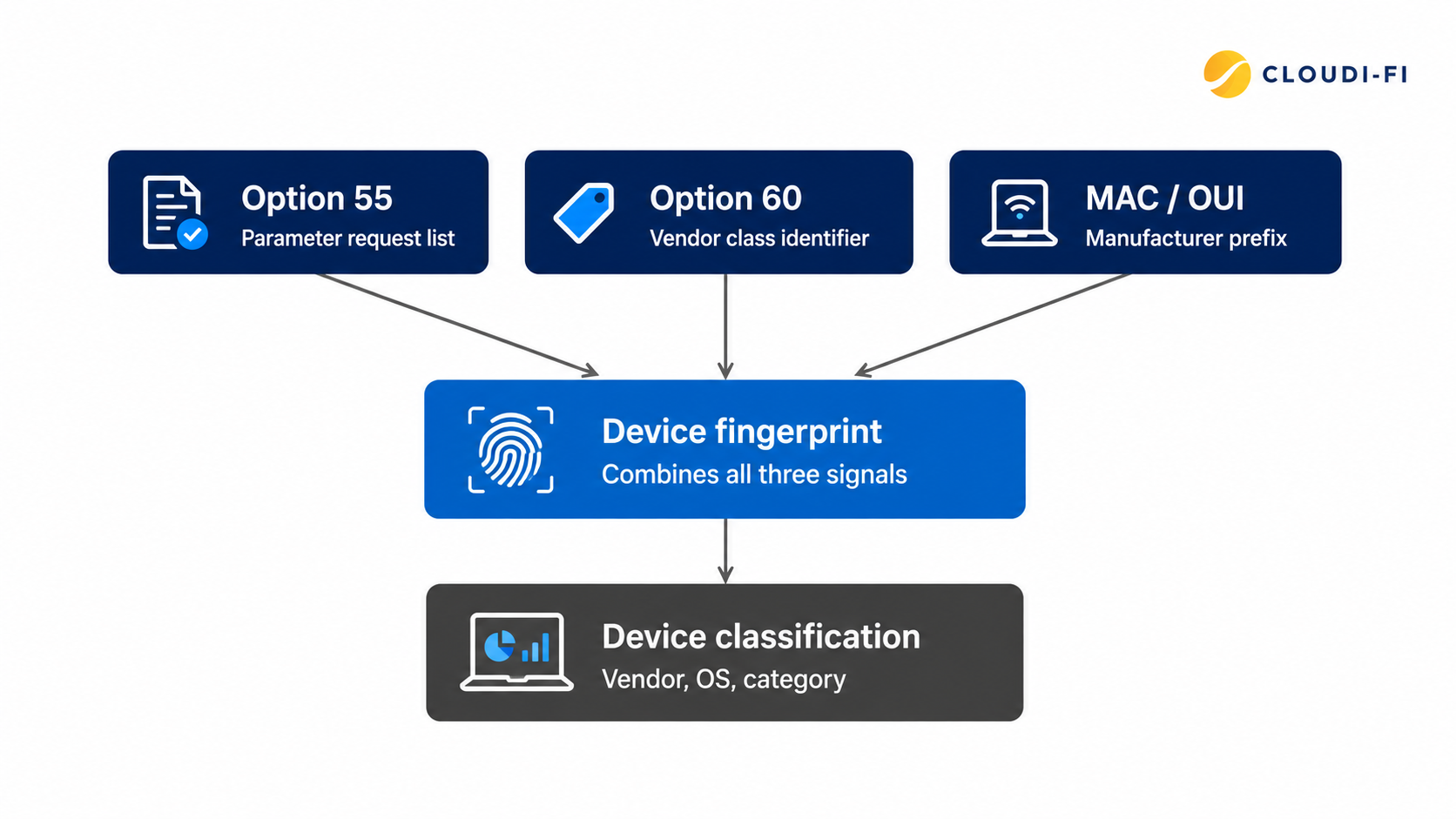
One of the most important DHCP fingerprinting signals is DHCP option 55, also known as the Parameter Request List.
This option shows which network configuration parameters a device requests from the DHCP server. Different operating systems and device categories often request different combinations and sequences of options.
By analyzing these requests, administrators can identify patterns that may indicate:
- Operating system type
- Device model category
- Vendor behavior
- Known device fingerprints
For example, a Windows endpoint may request a different set of DHCP parameters compared with an IoT camera or a smart building sensor.
DHCP option 60: the Vendor Class Identifier
Alongside option 55, DHCP option 60, the Vendor Class Identifier, is another valuable fingerprinting signal. Where option 55 shows which parameters a device asks for, option 60 lets the device declare its vendor or product class directly: many IoT devices, VoIP phones, printers, and other embedded systems populate this field with a vendor- or model-specific string identifying the manufacturer or product line.
This can make identification more direct than inferring device type purely from parameter-request patterns. However, not every device populates option 60, support varies by manufacturer and firmware, and, like MAC and option 55 data, the value is self-reported by the client, so it carries the same spoofing caveat covered later in this article. Option 60 is best used as an additional classification signal alongside option 55 and MAC/OUI, rather than a standalone identifier.
MAC address analysis also plays an important role. The first part of a MAC address, known as the Organizationally Unique Identifier (OUI), can identify the manufacturer of the network interface.
However, OUI matching alone only provides manufacturer-level information. It does not always identify the exact device type or provide enough context for security decisions.
Combining MAC/OUI information with DHCP fingerprinting provides a more complete picture of the device connecting to the network.
The visibility does not stop after the initial connection. DHCP lease renewals can also provide additional context through repeated communication patterns, transmitted options, and device identifiers. This allows organizations to maintain more accurate device awareness over time.
Where DHCP fingerprinting sits in the access sequence
It's important to be precise about when DHCP fingerprinting happens relative to network access control, since the two are often assumed to run in parallel.
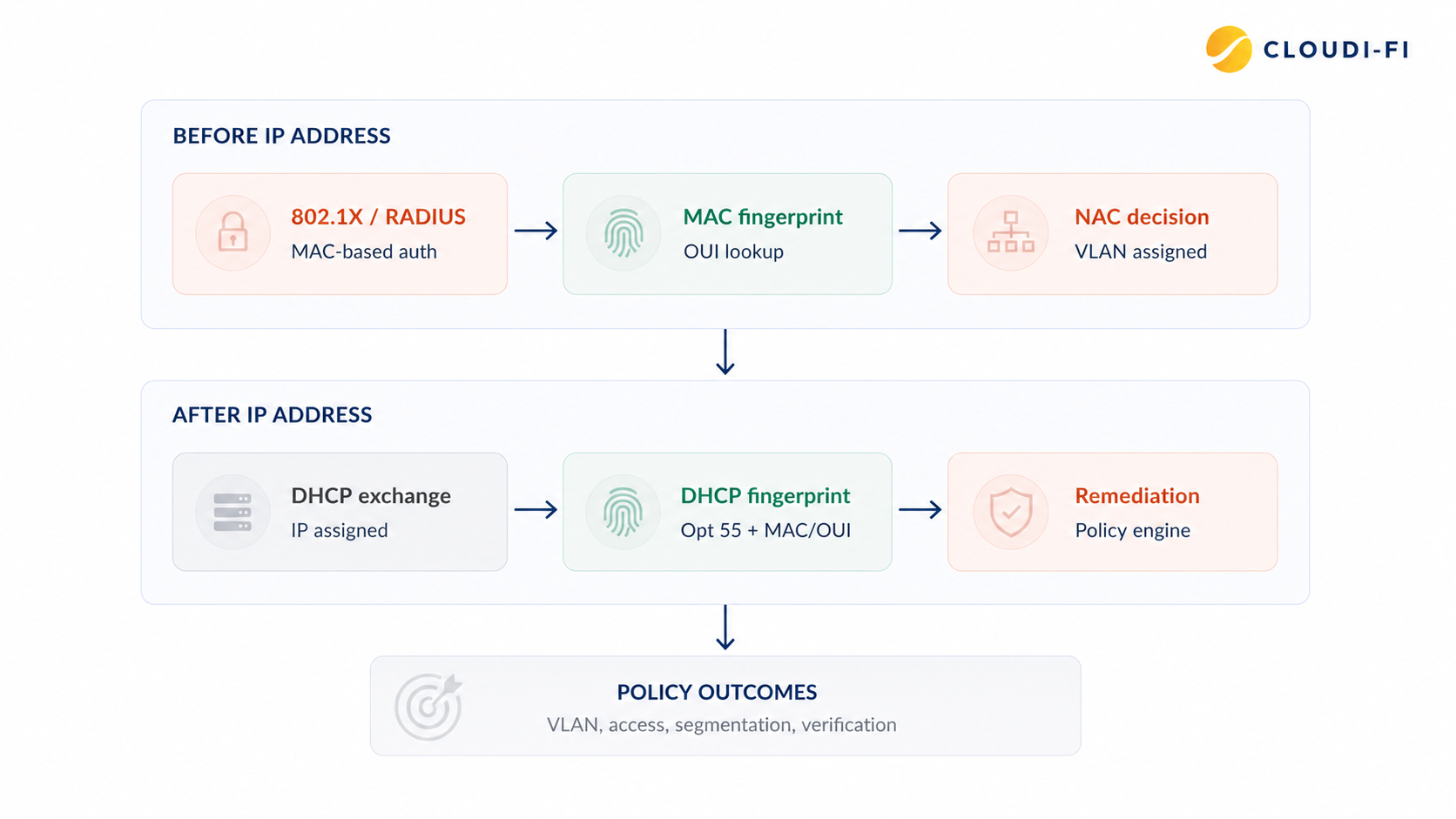
In a NAC-enabled network using 802.1X or RADIUS, network access is authenticated and an initial access decision, typically a VLAN assignment, is made based on the device's MAC address (via MAC Authentication Bypass, or a certificate/credential check) before the device is issued an IP address. RADIUS grants or restricts access first; DHCP happens afterward, once the device is already on a VLAN.
This means DHCP fingerprinting cannot be the basis for that first access decision — the device doesn't have an IP address yet, and the DHCP exchange hasn't occurred. What DHCP fingerprinting can do is refine that decision after the fact: once the device requests an IP address and its DHCP fingerprint is captured, the NAC policy engine can compare it against the initial MAC-based classification and trigger remediation if the two don't match, for example, moving the device to a more restrictive VLAN, re-segmenting it, or flagging it for investigation.
In practice, this makes DHCP fingerprinting a post-access refinement and remediation step, not a gate that access passes through. Coarse identification happens via RADIUS/MAC at connection time; DHCP-based fingerprinting adds detail and can correct or tighten that decision once the device is already communicating on the network.
Limitations of DHCP fingerprinting
DHCP fingerprinting is a strong source of device intelligence, but it has real limitations that should factor into how much weight it's given in an access decision.
Spoofing
Because fingerprinting relies on information the device itself supplies, MAC address, DHCP options, requested parameters, a malicious device can spoof these values to impersonate a trusted device profile and gain elevated access or reach resources it shouldn't. This risk is mitigated by pairing DHCP fingerprinting with controls such as DHCP snooping and IP Source Guard, which validate that IP and MAC addresses on the wire match the bindings learned during the legitimate DHCP exchange, and drop traffic that doesn't.
MAC randomization
Most modern operating systems (iOS, Android, Windows, and increasingly others) now randomize the MAC address by default for privacy, particularly on Wi-Fi. Since OUI-based identification depends on the first half of the MAC address reflecting the actual manufacturer, randomization breaks that signal and makes the same physical device appear as a new, unknown device on each connection, reducing the reliability of long-term device tracking and asset inventory built on MAC/OUI alone.
Why DHCP profiling matters for network visibility
Maintaining accurate network visibility has become one of the biggest challenges for security and IT teams.
Traditional discovery methods often rely on endpoint agents, manual inventory processes, or active scanning. While these methods can provide detailed information for managed devices, they are often limited when dealing with IoT devices and unmanaged endpoints.
Many IoT devices cannot run security agents. Some cannot support traditional authentication methods. Others may not even be known to IT teams before they connect.
DHCP profiling provides a different approach by using passive device identification.
Because almost every network-connected device requires an IP address, DHCP becomes a natural visibility point. Security teams can analyze connection behavior without installing software on endpoints or actively probing devices.
This enables organizations to:
- Discover unmanaged devices
- Improve asset inventory accuracy
- Identify unknown endpoints
- Understand device behavior
- Apply security policies based on device characteristics
This is especially valuable for detecting Shadow IoT, devices that connect to the network outside formal IT processes.
A smart device brought into an office, an unauthorized wireless device, or an unmanaged sensor may not appear in existing asset databases. However, DHCP profiling can reveal that a new device has connected and provide information about what type of device it is.
For large-scale environments, agentless device profiling makes device identification more practical, especially in IoT-heavy networks where manually tracking every endpoint is unrealistic.
DHCP profiling and Zero Trust — What’s the connection?
Zero Trust security follows the principle of “never trust, always verify.” However, verification requires context.
Before organizations can decide whether a device should access sensitive applications, internal resources, or specific network segments, they need to understand what that device is.
This is where DHCP profiling becomes an important part of a Zero Trust strategy.
DHCP fingerprints can reveal valuable device characteristics, but they do not authenticate devices, establish trust, or replace identity-based security controls. Instead, profiling acts as an additional intelligence source that helps security platforms make better access decisions.
For example, DHCP profiling data can feed network access control (NAC) policies that automatically determine:
- Which VLAN a device should join
- What resources it can access
- Whether segmentation rules should apply
- Whether a device requires additional verification
Unknown device detection also becomes more effective. If a device connects with unexpected DHCP behavior or does not match approved profiles, security teams can automatically restrict, isolate, or investigate it.
This approach supports Zero Trust network access (ZTNA) by adding device context to access decisions instead of treating every connected endpoint the same way.
DHCP profiling for IoT security
IoT security is one of the strongest use cases for DHCP device profiling.
Many IoT devices were not designed with enterprise security requirements in mind. They often cannot run endpoint agents, support certificates, or integrate with identity providers.
This creates a challenge: how can organizations apply security controls to devices that cannot authenticate like traditional endpoints?
Device fingerprinting provides a solution by allowing security teams to identify devices based on their characteristics and network behavior.
Instead of verifying only something a user knows, such as a password, or something a device possesses, modern NAC approaches can also verify something the device is, its unique fingerprint.
This capability is especially important in device fingerprinting network security strategies where visibility is required before access policies can be applied.
Since many IoT devices lack authentication capabilities, the IP address often becomes the primary identifier available for creating security rules.
Cloudi-Fi uses the DHCP process to assign IP addresses based on device categories, helping organizations classify IoT devices automatically. Within the Zscaler framework, each IoT category can be assigned a dedicated sublocation connected to a corresponding security profile, allowing organizations to apply appropriate security policies without requiring agents on the device.
This enables organizations to bring unmanaged IoT devices into a more controlled Zero Trust security model.
DHCP profiling vs. other device identification methods
Different device identification methods provide different levels of visibility and control.
Key benefits of DHCP device profiling
DHCP device profiling provides organizations with a scalable foundation for improving security visibility.
Key benefits include:
- Full device inventory without requiring agents
- Automated policy enforcement at scale
- Real-time IoT and BYOD identification
- Better unknown device detection
- Improved network access control decisions
- Support for Zero Trust security strategies
- No additional hardware requirements
By using information already available in DHCP traffic, organizations can gain better awareness of their network environment without adding complexity.
Conclusion
DHCP profiling is becoming an essential capability for organizations looking to improve network visibility and strengthen Zero Trust security.
As networks continue to expand with IoT, BYOD, and unmanaged devices, traditional identity approaches alone are not enough. Security teams need reliable ways to understand connected devices before applying access policies.
DHCP provides a valuable source of device intelligence that already exists across modern networks. When combined with NAC, segmentation, and cloud security controls, DHCP device profiling helps organizations make smarter security decisions and maintain control over increasingly complex environments.
Discover how Cloudi-Fi enables automated IoT fingerprinting, device identification, and secure network access through intelligent DHCP-based profiling.
Further knowledge based articles: